Step 101
Describe or Upload
Tell the AI image generator what you want to see. For photo edits, switch to image-to-image and upload a source image with your instructions.
Create images from text or upload a photo to change its style, background, and details. Pikvee brings multiple image models into one workspace.
Start with a prompt or a reference photo, choose your settings, and explore the results. No design software is needed to get started.
Tell the AI image generator what you want to see. For photo edits, switch to image-to-image and upload a source image with your instructions.
Select a model and the available aspect ratio, resolution, and image count for your task. Options and credit costs depend on the model.
Generate your first images, then adjust the prompt to explore another direction. Describe the subject, lighting, composition, and details you want to change.
Review the results and download the images you want to keep. Check details and text before using them in your next project.
Explore portraits, product scenes, illustrations, and campaign concepts. Give your ideas a visual starting point, then refine the result to suit your project.
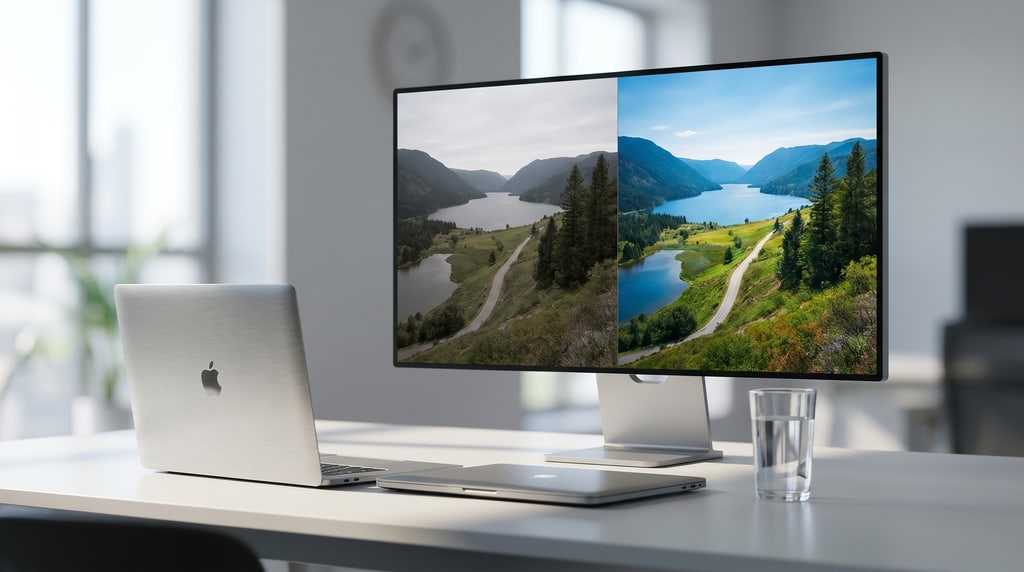
Image output
Describe the scene you have in mind, from a softly lit portrait to a bold product concept. Use the AI image generator to explore how lighting and composition change the result.
Use the AI image generator for a new scene, or start with an existing image when you want to guide the subject, composition, or style.
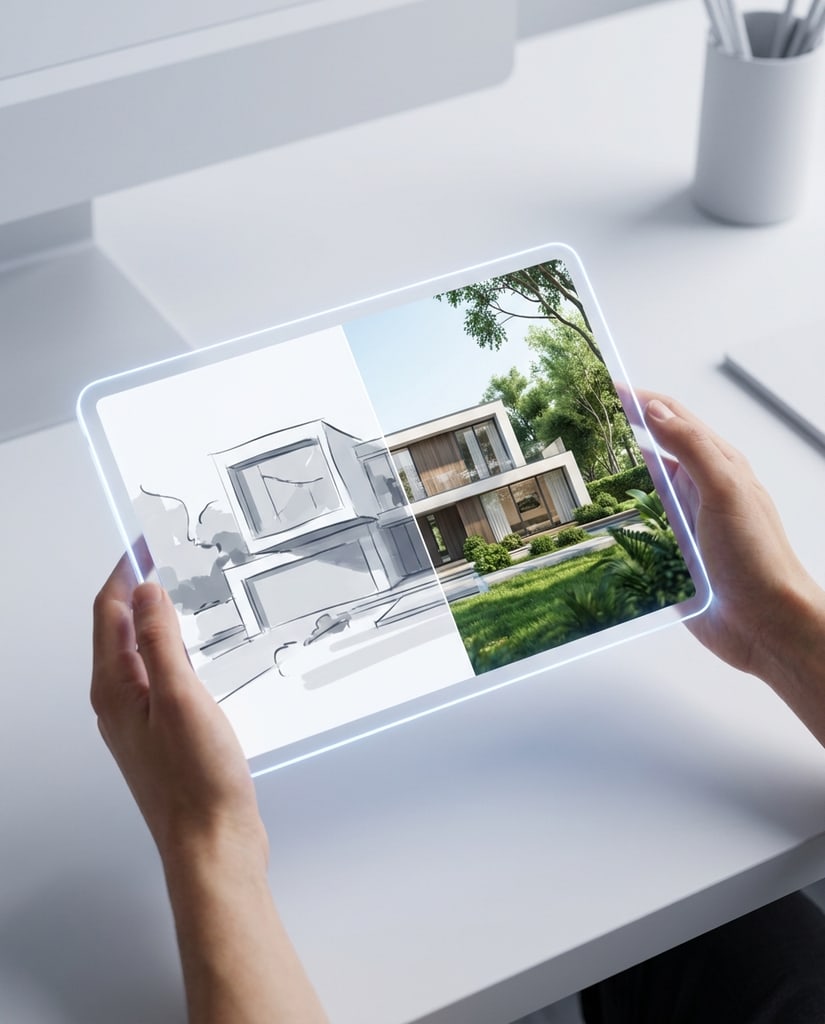
Image generation
Describe a subject, setting, and style to create an original scene. Add practical details such as camera angle or background when they matter to your idea.
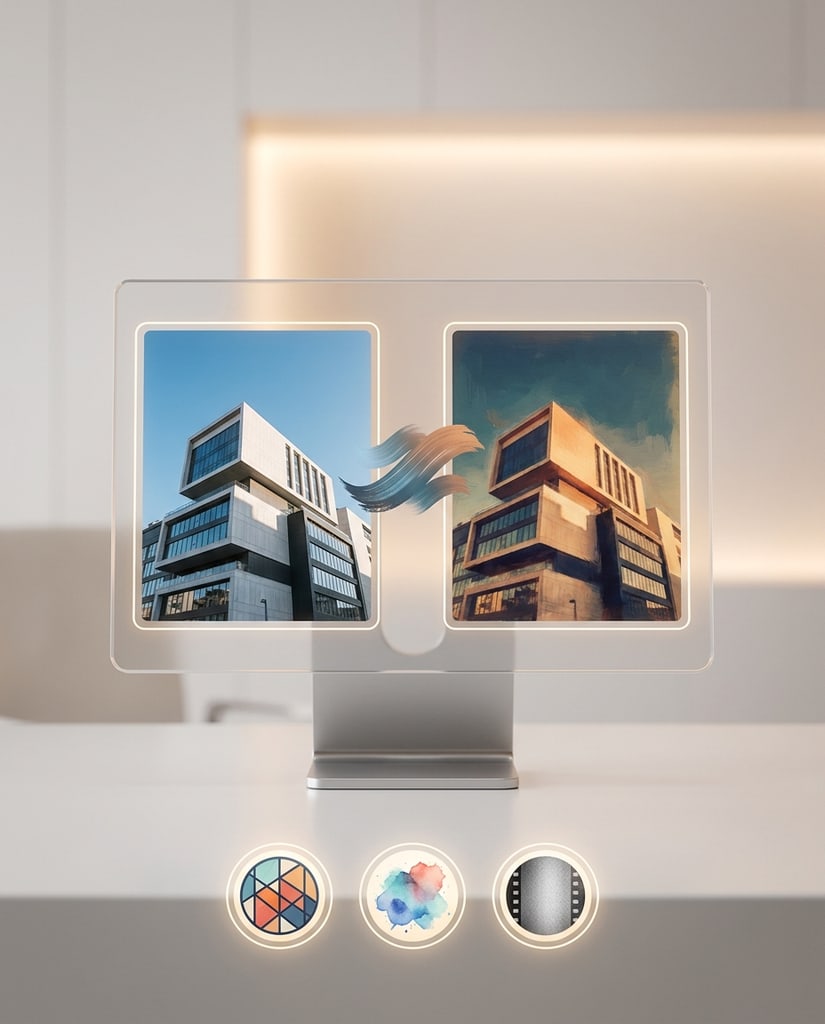
Bring a reference photo to the AI image generator and describe your changes. Explore an illustrated look, a different setting, or a fresh color palette.
Choose the workflow and settings that fit your image. Available controls vary by model, so you can choose an option that suits your creative goals and credit budget.
01
Try different image models without moving between separate tools. Compare their results for portraits, illustrations, product concepts, or photo editing.
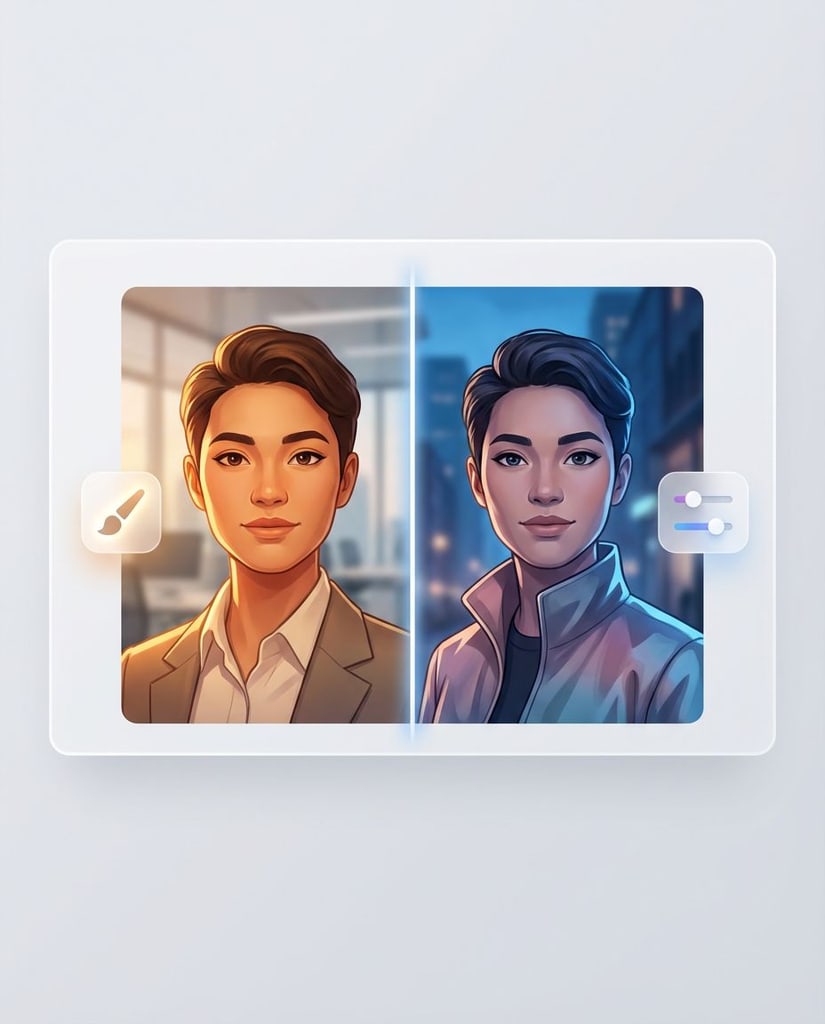
02
Choose from the aspect ratios, resolutions, and output counts supported by your selected model. See the credit cost before you generate.

03
Upload a photo to the AI image generator and describe your changes. Ask to keep important features while exploring a different background, style, or mood.
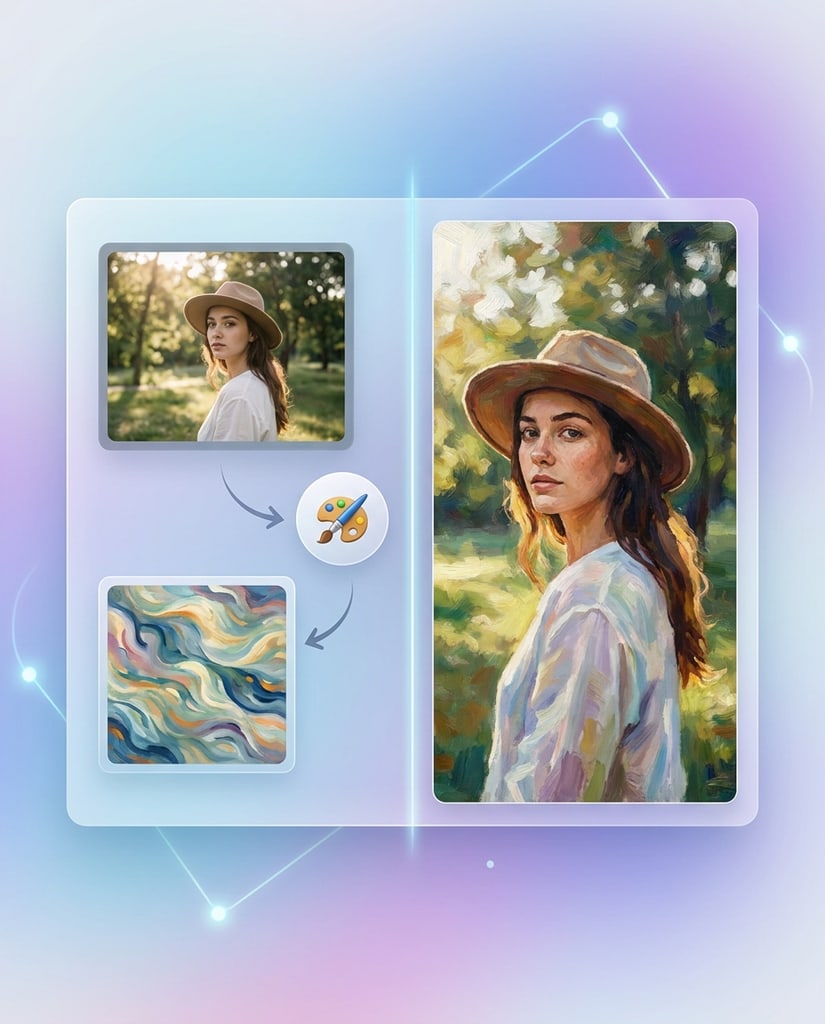
From a single social post to a set of product concepts, start with the image you need and describe the audience, format, and visual style.
Explore ad ideas, launch visuals, and landing-page images. Use an AI image generator to compare creative directions before choosing what to develop further.
Create portraits, post illustrations, and themed visuals for your publishing calendar. Specify the mood and composition to suit each channel.
Turn an explanation into a visual concept for a lesson, presentation, or course. Review the result for accuracy before sharing it with learners.
Upload a product photo and explore backgrounds or seasonal settings. Check that the generated image represents your product accurately before publishing.
Use the AI image generator to experiment with color, lighting, and composition. Bring a reference image when you have a specific starting point.
Create visual drafts for announcements, website sections, and promotional ideas. Refine the images to match your brand and review them before use.
Keep your image workflow focused: describe what matters, explore a few options, and choose the result that fits your purpose.
A short text prompt or an existing photo is enough to begin. The AI image generator supports both starting points in the same workspace.
Change one part of your prompt at a time to compare styles, settings, or lighting. Keep the details that help communicate your idea.
Review faces, lettering, product details, and composition. Download a result when it meets your needs, or revise your instructions and generate again.
Find out how to start, when to upload a reference image, and what to check before generating.
An AI image generator creates images from written instructions. Pikvee also supports image-to-image workflows, letting you upload a photo and describe edits to its style, background, or other details.
Open the generator, choose text-to-image, and describe your subject, setting, and style. Select a model and its available settings, check the credit cost, and generate your image.
Yes. Switch the AI image generator to image-to-image, upload your reference photo, and explain what should change and what should stay. Results depend on your instructions and the selected model.
Models offer different capabilities and settings. The AI image generator shows the credit cost for your current selection before submission. Visit the pricing page for current plans and credit options.
Small changes to your prompt can clarify your intent. Try these approaches when using the AI image generator.
Start with your subject and setting, then add lighting, style, and composition. Keep instructions specific so the model has a clear direction.
Explain which features should remain and which should change. Review the result and refine your instructions if important details drift.
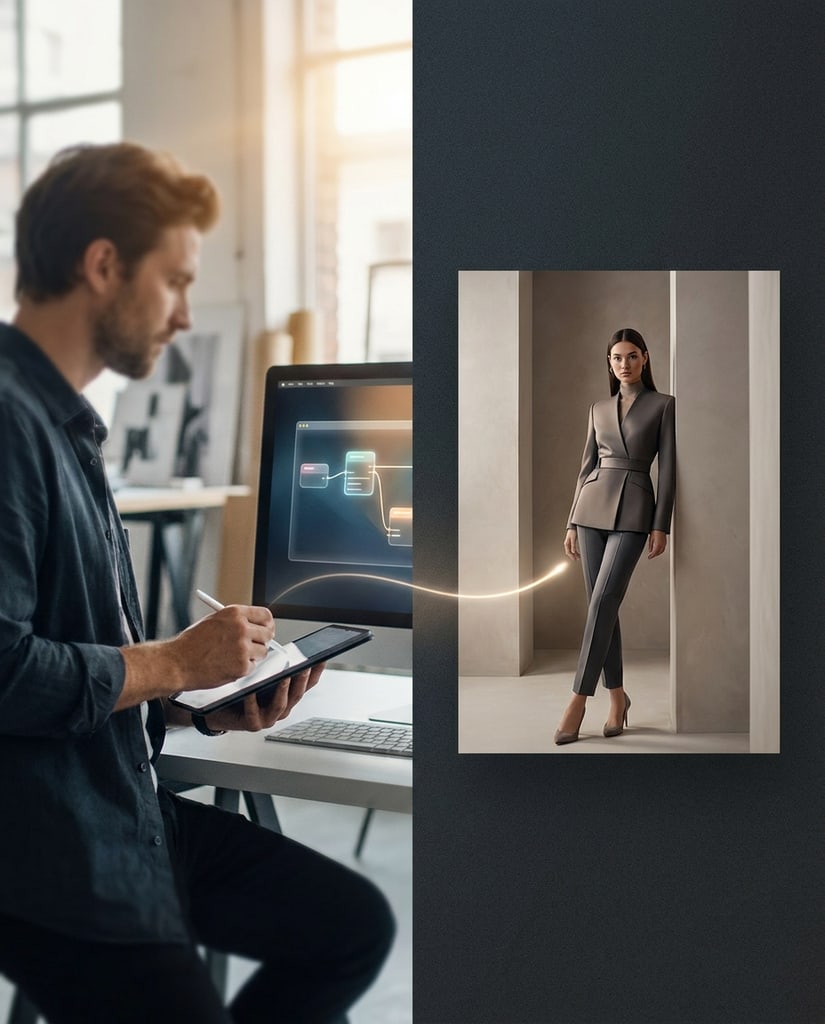
Try a new background, lighting setup, or style while keeping the rest of your prompt similar. Compare the results to find your preferred direction.

Start with a text prompt or a reference photo. Choose a model, check your settings, and create your next portrait, product scene, or illustration with Pikvee.
Privacy Choices
We use cookies and similar technologies to keep Pikvee working, measure product usage, and control advertising-related preferences. Necessary cookies stay on. You can reject non-essential use or review detailed settings.



