

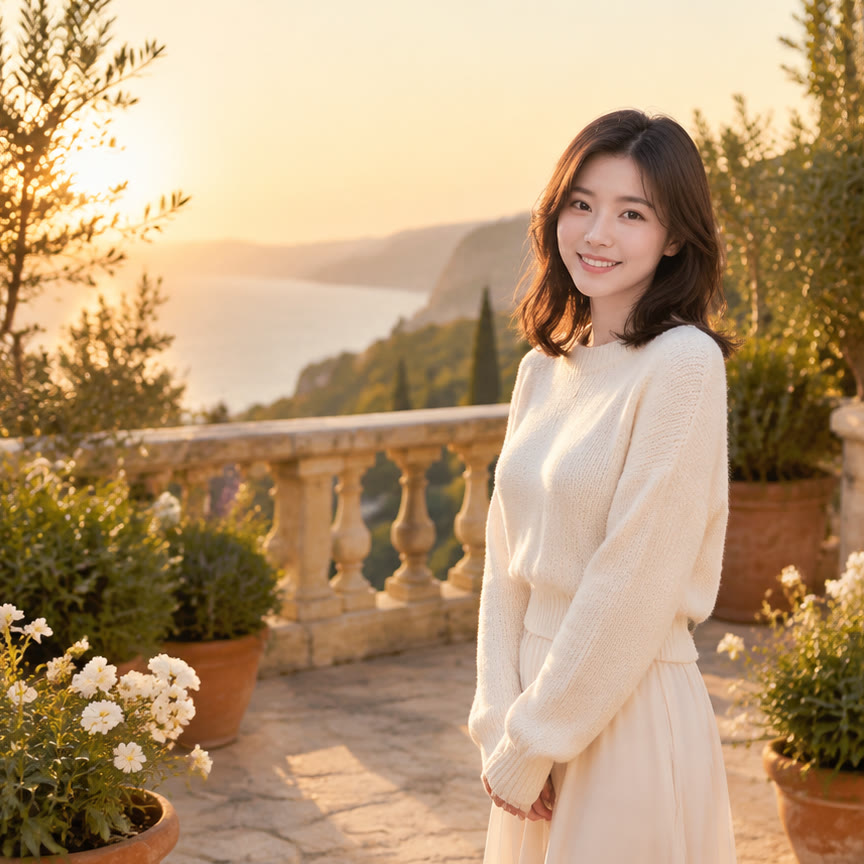
AI photo compositing
AI Add Person to Photo: Natural Photo Blending
You can add a person to a photo when a friend misses a group shoot, a family member cannot attend a celebration, or a portrait needs one more figure for the story. The goal is not merely to paste a cutout into the frame. A convincing result keeps the original scene intact while matching perspective, light, scale, color, and shadow so the new figure appears to occupy the same physical space.
What does it mean to add person to photo?
To add person to photo means combining a source scene with a reference portrait so the newcomer shares the same camera viewpoint and lighting logic. Unlike a simple collage, a natural composite preserves edges, proportions, and shadows. The added figure should be partly aligned with furniture, foliage, or architecture where appropriate, not floating above the ground.
This task is useful for group photos, travel pictures, event portraits, and creative scenes. It can also repair a missed opportunity: one absent relative, a friend delayed by traffic, or a teammate who left before the final photograph.
What an AI add-person-to-photo workflow can do
An AI add-person-to-photo workflow takes two inputs: the scene you want to keep and a clear reference image of the person to insert. A good editor estimates where the person should stand, adjusts their size to the scene's depth, and blends their tone with nearby surfaces. It can also generate believable contact shadows and preserve the original background around the insertion area.
The result works best when the two source photos have compatible viewing angles and light directions. A front-facing portrait can fit into a front-facing group shot more easily than a profile portrait can fit into a wide overhead scene. If the person is farther away, clothing detail should soften naturally instead of remaining unnaturally sharp.
How to write a prompt for natural results
Describe placement first, then scene consistency. Instead of asking only to add person to photo, say where the person should stand, what they should wear, and which parts of the original image must remain unchanged. Mention perspective, camera distance, light direction, color temperature, and ground contact so the model treats the task as spatial integration rather than decoration.
Add limits that protect identity and composition. Ask the editor to preserve facial identity, body type, clothing style, background layout, and the positions of people already in the frame. If hands, hair, or important objects overlap the insertion point, name them explicitly.
Four prompt directions to try
Family portrait: place the missing person between two seated relatives, match indoor window light, soften clothing detail at the same depth, and keep faces, hands, and furniture unchanged.
Travel scene: position a friend on the right side of a coastal path, align their scale with nearby railing posts, add a soft ground shadow, and preserve the horizon, clouds, and original color grade. Event photo: insert a colleague into the second row of a conference group, match ceiling lighting and mild lens blur, and preserve badges, chairs, and stage background without adding text.
How to improve your results
Choose reference photos with similar light and resolution to the destination scene. Avoid heavy filters, sunglasses that hide identity, extreme perspective distortion, or cropped shoulders if the final pose needs a full body. Clear, evenly lit references usually produce more stable faces and clothing.
Review the result at full size. Look first at ground contact, edge color, eye direction, scale relative to nearby people, and shadows cast by the arms or legs. If the figure seems pasted, refine only the insertion area and repeat with a simpler placement or a more direct reference pose.
Start adding a person to a photo
Upload the scene, upload a reference portrait, and write one prompt that covers placement, lighting, and preservation. Keep the first version simple, inspect the contact edges, then adjust placement or pose in small steps.
Only use images you own or have permission to edit. If the photo shows a real person, respect their likeness and privacy, avoid misleading context, and disclose significant synthetic changes when the image is used publicly or professionally.