Posters and campaign graphics
Create several headline, crop, and visual-hook directions before committing to the campaign route.

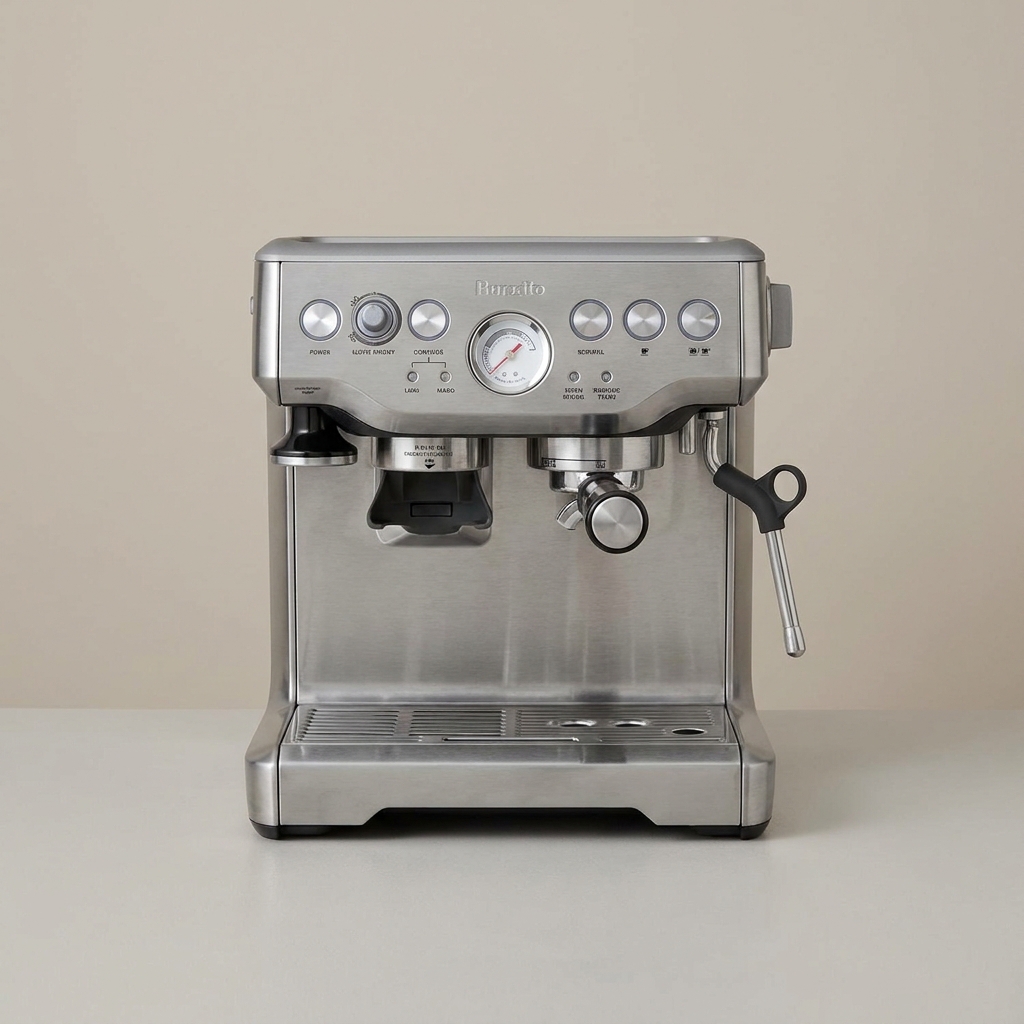
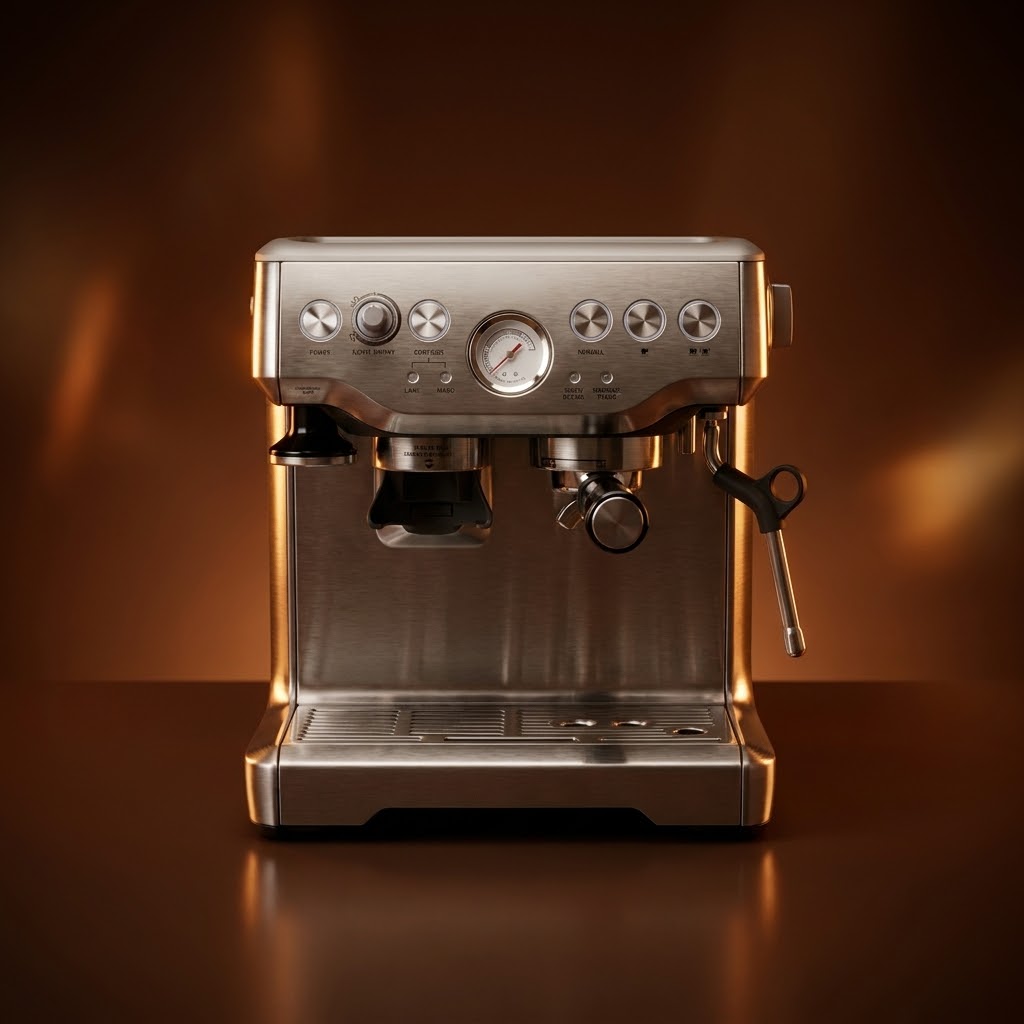
Refine a flat product image into a cleaner brand-ready visual with controlled reflections, warmer key light, and a more elevated studio finish.
Use GPT Image 2.5 when the job is not a single perfect render but a sequence of fast decisions: preserve the product or character, change the scene, compare versions, and keep the brief moving.
Independent product. Not affiliated with Google.
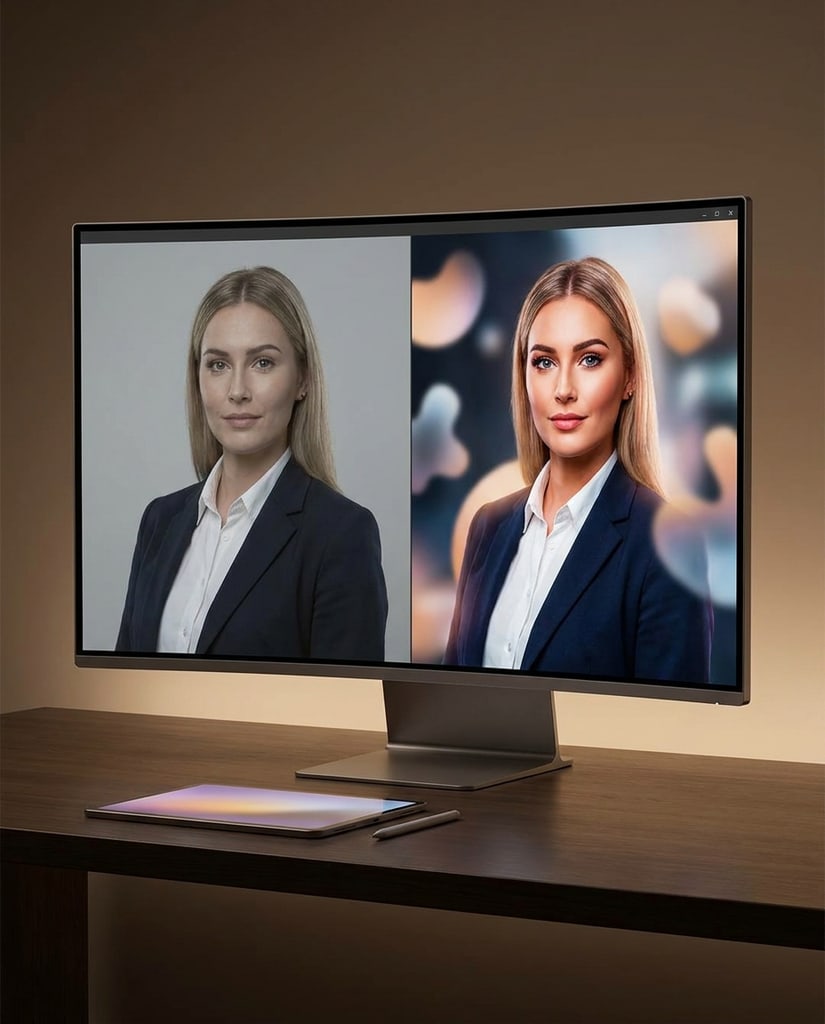
Use GPT Image 2.5 when the work benefits from multiple fast passes, reference preservation, and controlled edit boundaries.
Create several headline, crop, and visual-hook directions before committing to the campaign route.
Preserve the product while testing room sets, lighting, seasonal props, and shopper-facing hero crops.
Try visual explanations, diagram-like drafts, and presentation images before turning them into final design files.
Start with the object or message that must stay stable, then create controlled variations until one direction is worth polishing.
Tell GPT Image 2.5 which product shape, face, logo area, color relationship, or composition anchor must survive every variation.
Upload source images for identity and structure, then describe only the changes you want: background, crop, material, lighting, or camera angle.
Create a few practical directions at the size you need for review, then spend more effort only on the option with a clear use case.
Once the message, crop, and subject preservation look right, move the best draft into manual design, higher-quality generation, or stakeholder review.
Choose GPT Image 2.5 when the team needs a quick, source-aware answer to the next visual decision, not a single overworked final image.

Instruction Depth
GPT Image 2.5 works well when a brief has hard constraints: preserve this item, change that scene, keep the crop practical, and make the result easy to compare.
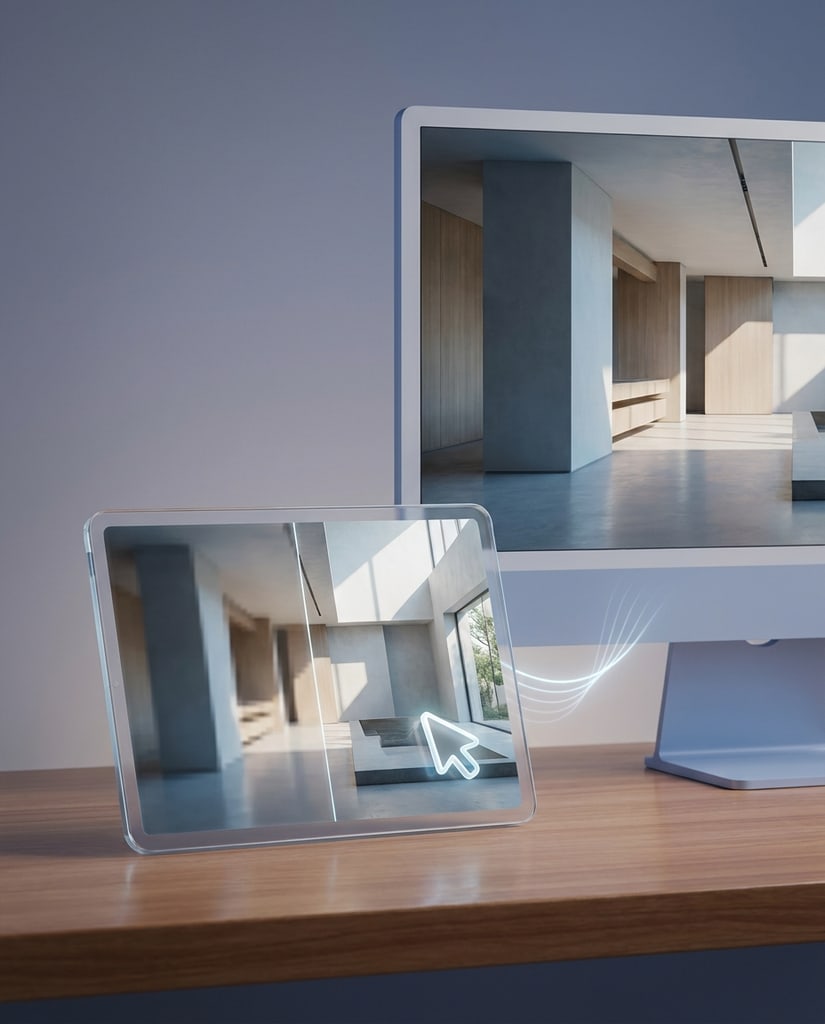
Text-Aware
Use it for drafts where words, labels, packaging marks, or message areas need to guide the concept, even if final typography still needs review.

Edit Flow
Reference-led runs help teams keep the important subject recognizable while testing new scenes, crops, lighting, or merchandising treatments.
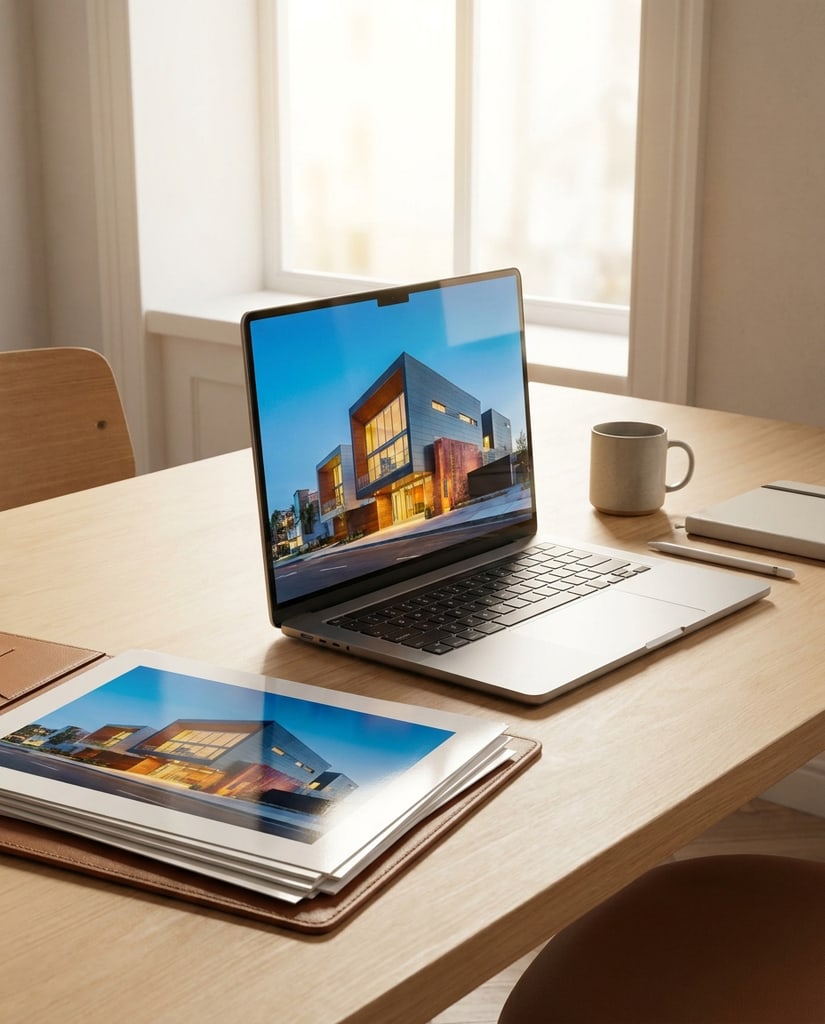
Campaign Drafts
The page is tuned for quick launch images, product story tests, channel crops, and visual explanations that need agreement before design polish.
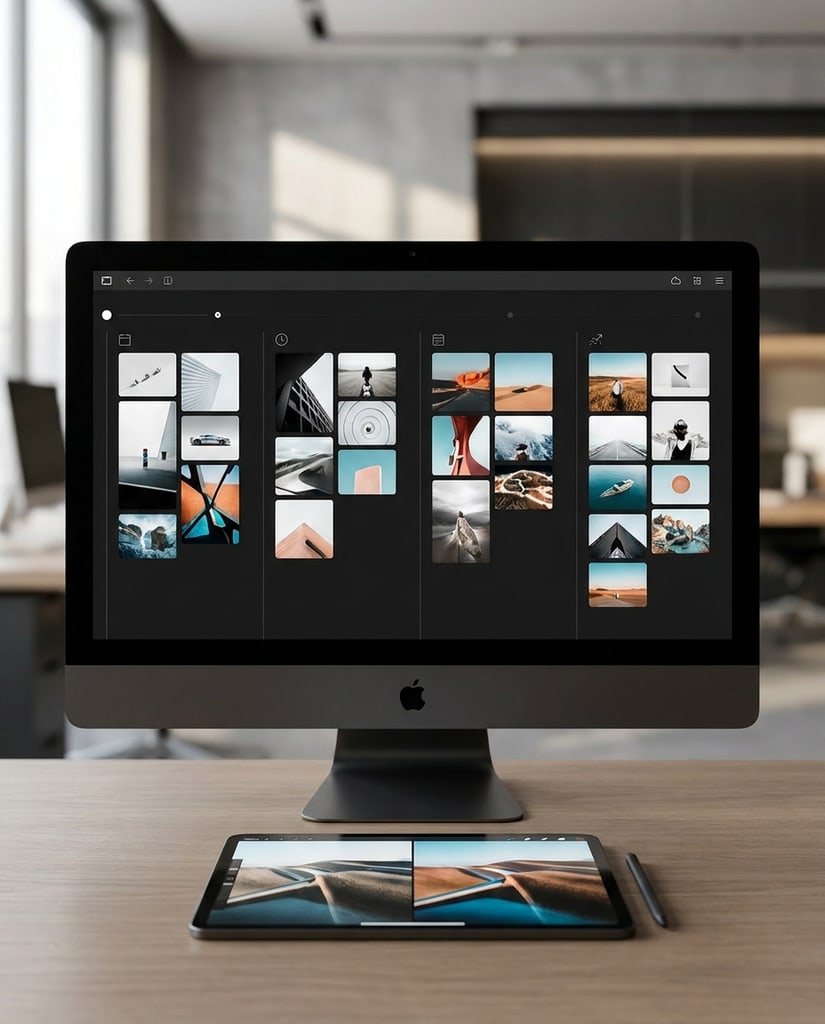
Model Choice
Keep GPT Image 2.5 available as the fast comparison option when a job starts from a source image, a strict brief, or several uncertain directions.
A focused route for designers, marketers, founders, and content teams that need to compare options while the brief is still moving.
Draft launch visuals, event cards, and social covers in several directions so teams can judge the hook before polishing typography.
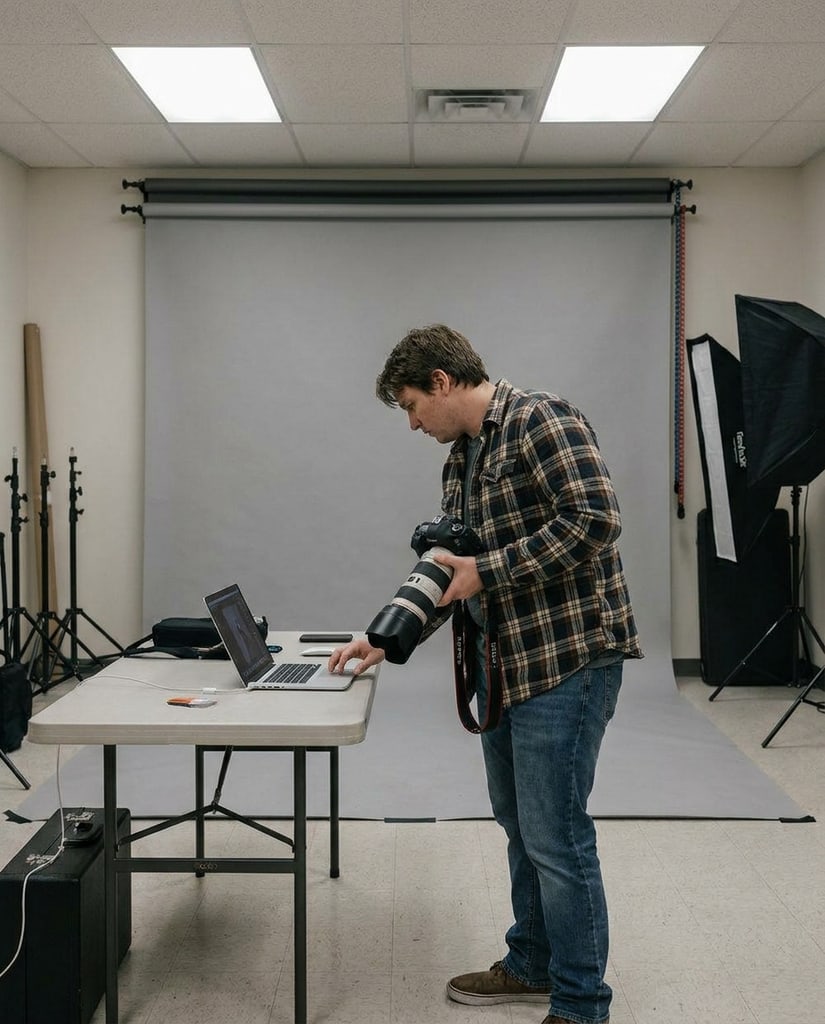
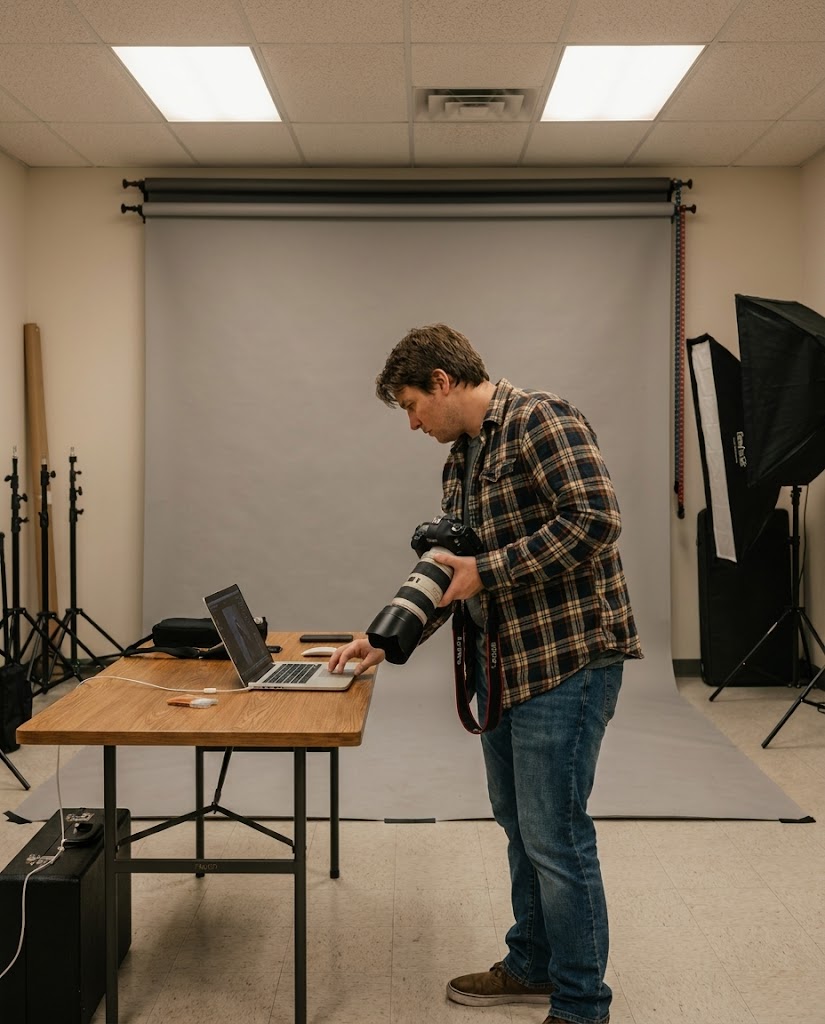
Keep the same product recognizable while testing PDP hero crops, lifestyle settings, merchandising angles, and seasonal scenes.
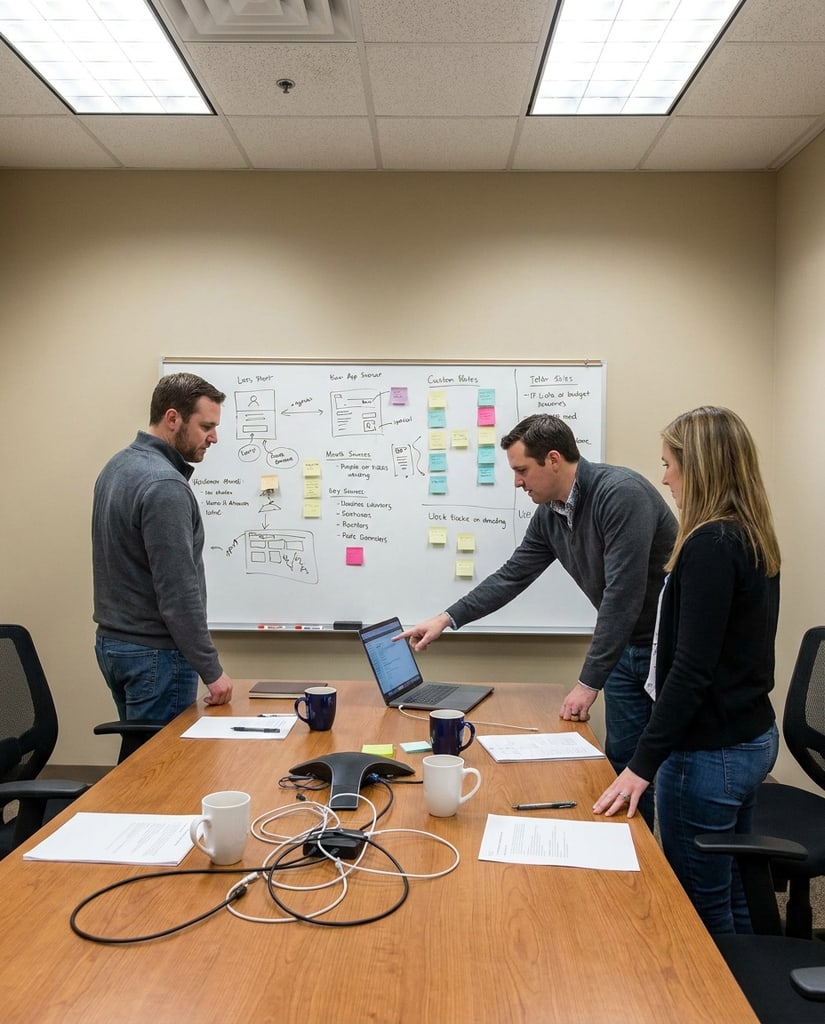
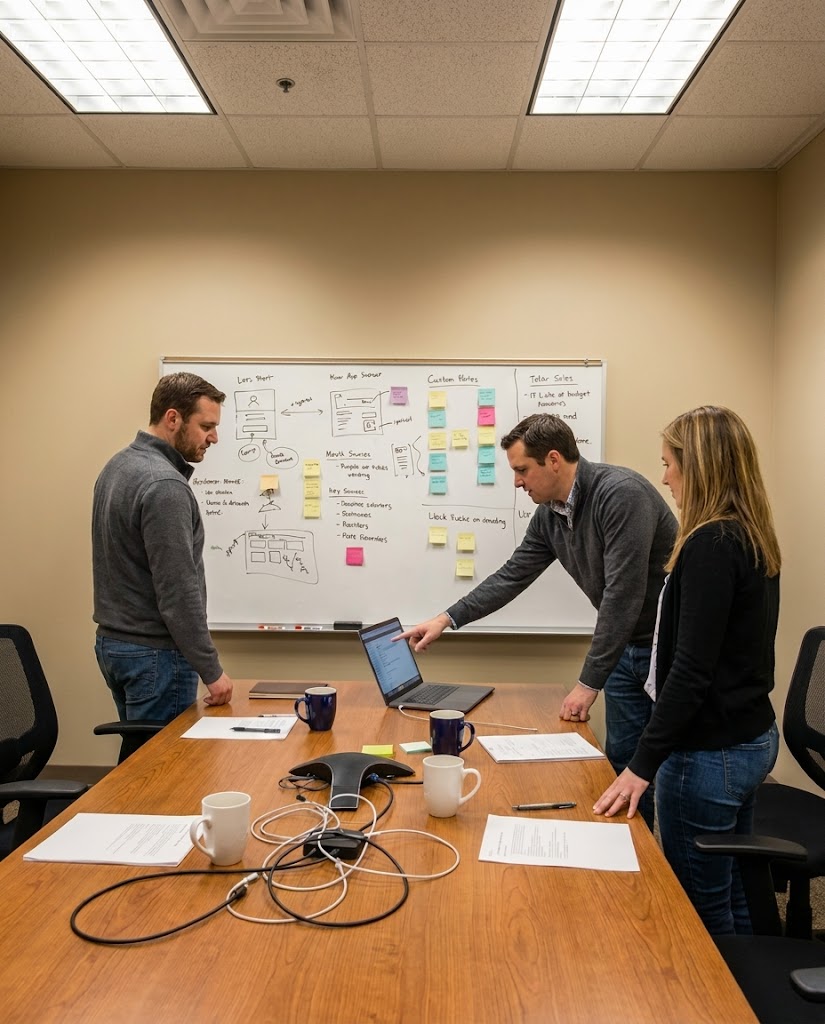
Generate diagram-like drafts, annotated concepts, and slide-ready visuals that are good enough for direction setting.
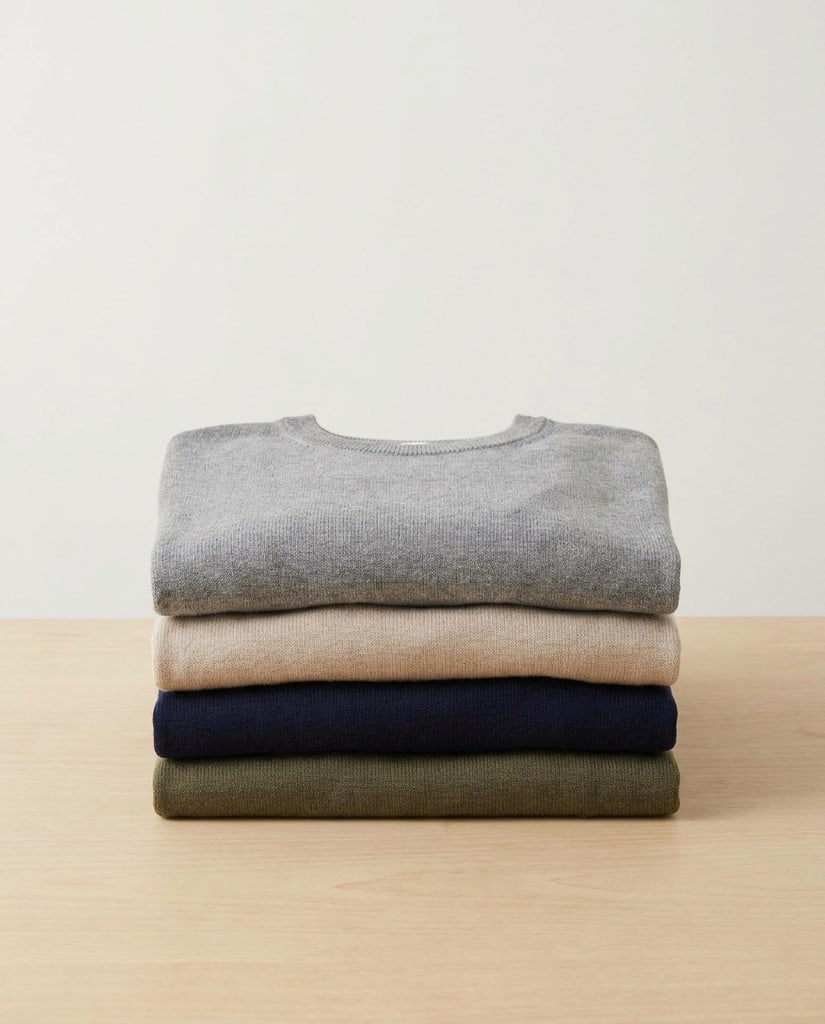
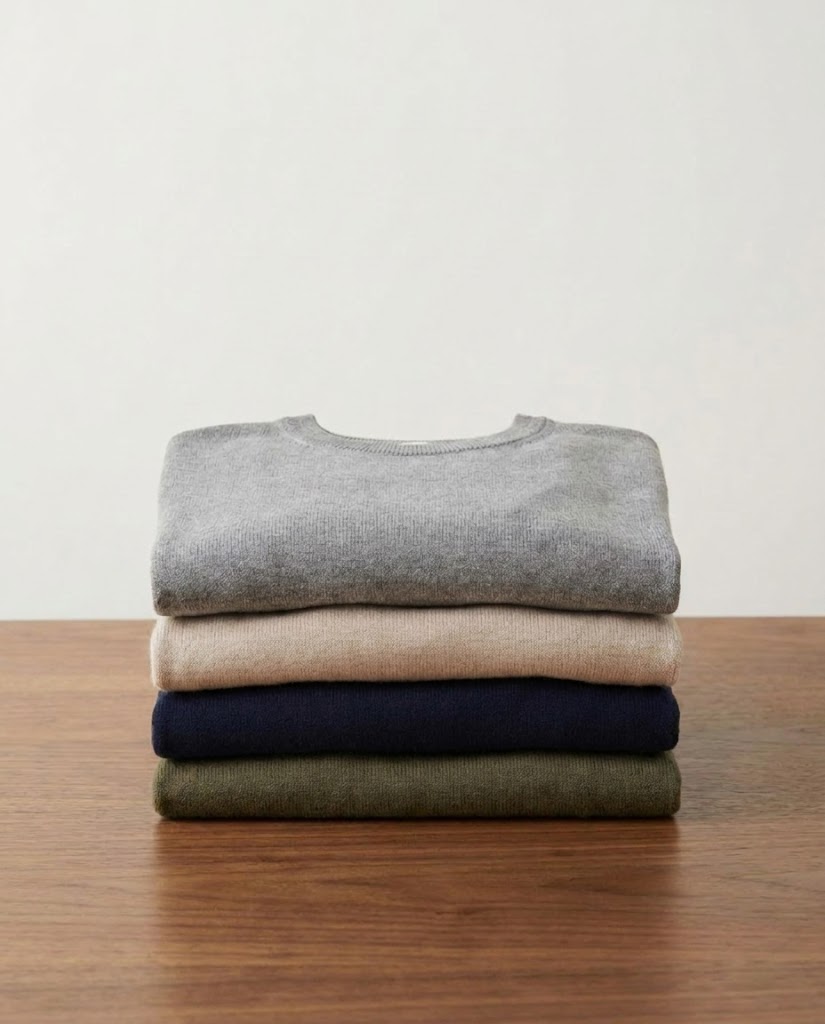
Use source images to preserve identity while changing lighting, materials, environment, crop, or the message around the subject.
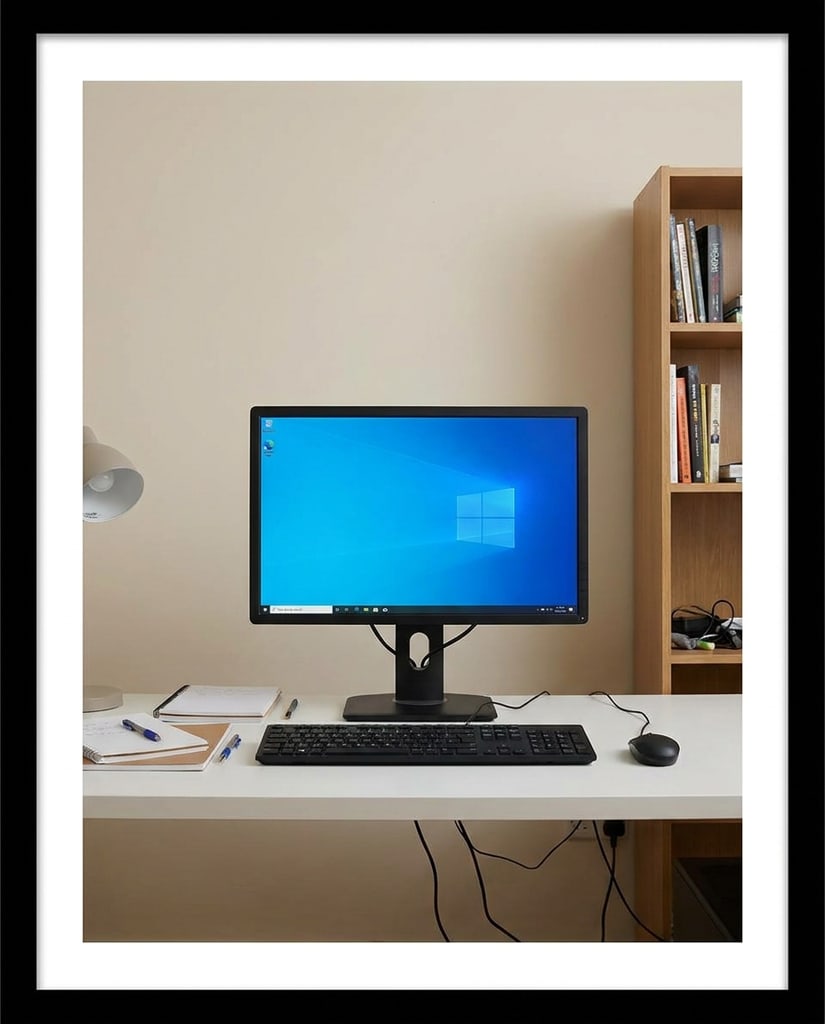
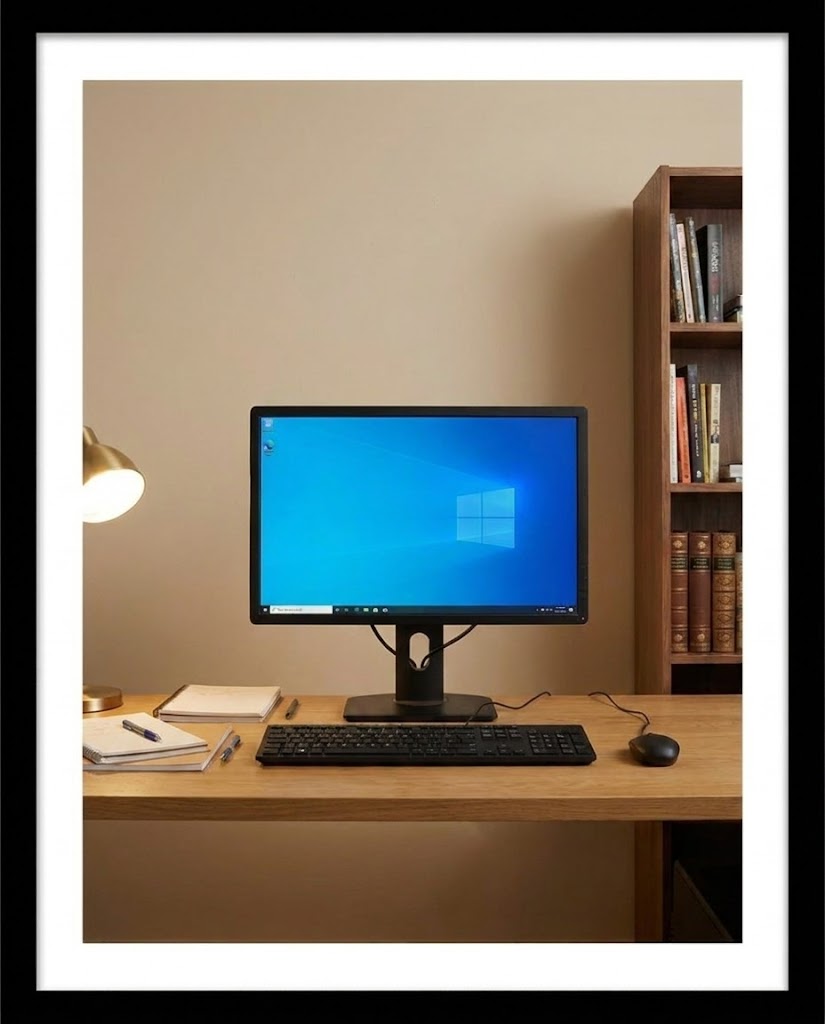
Use GPT Image 2.5 to turn one brief or reference into channel-specific variations for publishing tests, stakeholder review, and production planning.
YouTubers, educators, and video teams comparing thumbnail hooks before they commit to a full packaging style.
Create thumbnail alternates, title-card crops, channel banners, and scene concepts from one reference or episode idea.
Compare visual hooks quickly while keeping the face, product, or episode topic recognizable.
Creators and social teams that need many small visual decisions for short-form ideas in a compressed schedule.
Generate cover-frame options, quick storyboard stills, product-led angles, and text-forward drafts for short-video planning.
Move from idea to testable creative faster, then promote only the strongest variation into editing.
Store owners, merchandisers, and ecommerce teams testing product-page directions before shoot or design resources are booked.
Draft product scenes, hero banners, comparison angles, promotional tiles, and seasonal merchandising visuals from focused references.
Preview more page-ready directions before scheduling shoots, retouching, design work, or catalog updates.
Marketplace sellers and catalog teams exploring listing angles while keeping product recognition intact.
Explore secondary listing angles, lifestyle scenes, feature diagrams, packaging callouts, and testable comparison concepts.
Clarify product value earlier and reduce back-and-forth before producing compliant final assets.
Creators, founders, and brand teams adapting one idea across Instagram formats without losing the source subject.
Create feed alternates, carousel covers, Stories frames, Reels covers, highlight graphics, and campaign crops.
Turn one message into multiple reviewable formats while keeping the source subject consistent.
Small businesses, agencies, and in-house marketers deciding which visual route deserves limited production time.
Generate campaign key-visual variants, ad concepts, landing-page art, email graphics, and pitch-ready visuals.
Align on the strongest direction sooner so production time goes to the versions that already have agreement.
Common questions about using GPT Image 2.5 inside Pikvee. This page is tuned for quick visual decisions: start with a brief or reference, protect the important subject, generate controlled variants, and move only the best direction toward final production.
Use it when you need fast drafts, controlled variations, and reference-guided edits. It is especially useful for ecommerce scenes, campaign concepts, thumbnails, social covers, and review images where the first goal is choosing a direction.
Yes. Upload a reference when the subject, product, character, or layout needs to remain recognizable, then describe the limited change you want: new background, different crop, cleaner lighting, revised material, or alternate scene.
The generator shows the ratios and resolutions available for this route. Choose the destination first, such as a vertical short-video cover, square social post, product-page banner, or wide presentation visual.
Not always. GPT Image 2.5 is most useful when speed, reference preservation, and edit boundaries matter. Within the family, choose gpt-image-2.5-flare for faster iteration and gpt-image-2.5-sunburst for more precise, higher-quality revisions.
GPT Image 2.5 is an AI image generation and editing option focused on faster iteration and controlled revisions. In Pikvee, it is best treated as a practical draft engine: give it a brief, add references when identity matters, compare variants, and hand off the strongest result for polish.
Start by naming what cannot change. For example: keep this bottle shape, keep this face angle, keep the package color, or keep the same layout rhythm. Then describe the new setting, crop, lighting, audience, and channel so the first result is already useful for comparison.
Write the prompt like an edit brief. State the stable subject, the change request, the channel, the framing, and the review goal. For example, ask for three clean ecommerce hero directions with the same product silhouette, warmer window light, more negative space on the right, and a 16:9 crop for a landing page.
Use one reference for the identity you must preserve and add more only when they clarify a separate constraint, such as material, pose, or brand style. Too many references can make the task harder to reason about, so label what each image is meant to control.
Creators can compare thumbnail hooks and cover frames. Ecommerce teams can test product environments and listing angles. Marketers can review ad concepts and campaign variants. Designers can create quick source-aware drafts before deciding which route deserves a full design pass.
Pick the ratio from the review destination, not from the model. Use vertical for short-video covers, square for feed tests, landscape for page banners, and wide formats for presentations. Keep early drafts lightweight, then raise output settings after the team chooses a direction.
Choose GPT Image 2.5 when you want controlled rounds from a brief or reference. Use gpt-image-2.5-flare for broad speed-first exploration, gpt-image-2.5-sunburst for more precise edits, Nano Banana 2 for broad publishing variations, and Nano Banana Pro when final polish matters more than speed.
Try GPT Image 2.5
Use GPT Image 2.5 for quick drafts, subject-preserving edits, and comparison rounds before committing to a final image workflow.
Privacy Choices
We use cookies and similar technologies to keep Pikvee working, measure product usage, and control advertising-related preferences. Necessary cookies stay on. You can reject non-essential use or review detailed settings.