
AI photo editing guide
Free Add Sticker to Photo AI Generator
A free add sticker to photo AI generator lets you place a fun graphic on an existing picture without cutting shapes or matching shadows by hand. Upload one photo, describe the sticker you want, and the model places it with believable perspective, scale, and contact shadow while keeping the original scene intact. It is a fast way to add sticker to photo free for social posts, journals, greeting cards, and everyday snapshots.
What does it mean to add a sticker to a photo?
Adding a sticker to a photo means placing a graphic element on top of an existing image. Unlike a full edit that rebuilds the whole scene, it is a focused change: the original subjects, background, and light stay in place while one decorative layer is added.
The sticker can be many things, such as an emoji-style face, a flat die-cut shape with a white outline, a seasonal icon, or a simple badge. The goal is not to paste a flat cutout awkwardly on top, but to place a graphic that respects the surface, angle, and lighting of the photo.
What a free add sticker to photo AI generator can do
A free add sticker to photo AI generator takes one uploaded photo and one short description, then produces a sticker overlay that matches the scene. You do not need editing skills, layers, or a separate cutout tool. You describe the sticker, its style, and where it should sit, and the model handles perspective and shadows.
Typical uses include decorating a selfie, adding a badge to a product photo, marking a travel shot, or making a quick greeting card. Before you publish or sell an image, make sure you own or have permission to use the photo and the sticker design, especially characters, logos, and photos of other people.
How to write an add sticker to photo prompt
A short, specific prompt works best. A useful order is: sticker type + placement + size + perspective and shadow + what must stay unchanged. For example: "Add a flat die-cut sticker with a clean white outline, a small sun badge, on the corner of the notebook, matching the overhead angle and window light. Keep the rest of the photo unchanged."
Always protect the parts that make the photo recognizable. Ask the model to keep the original people, background, composition, and lighting, and to leave faces and important details uncovered. If you only want one change, say so, and avoid stacking many new elements into a single prompt.
Four sticker directions to try
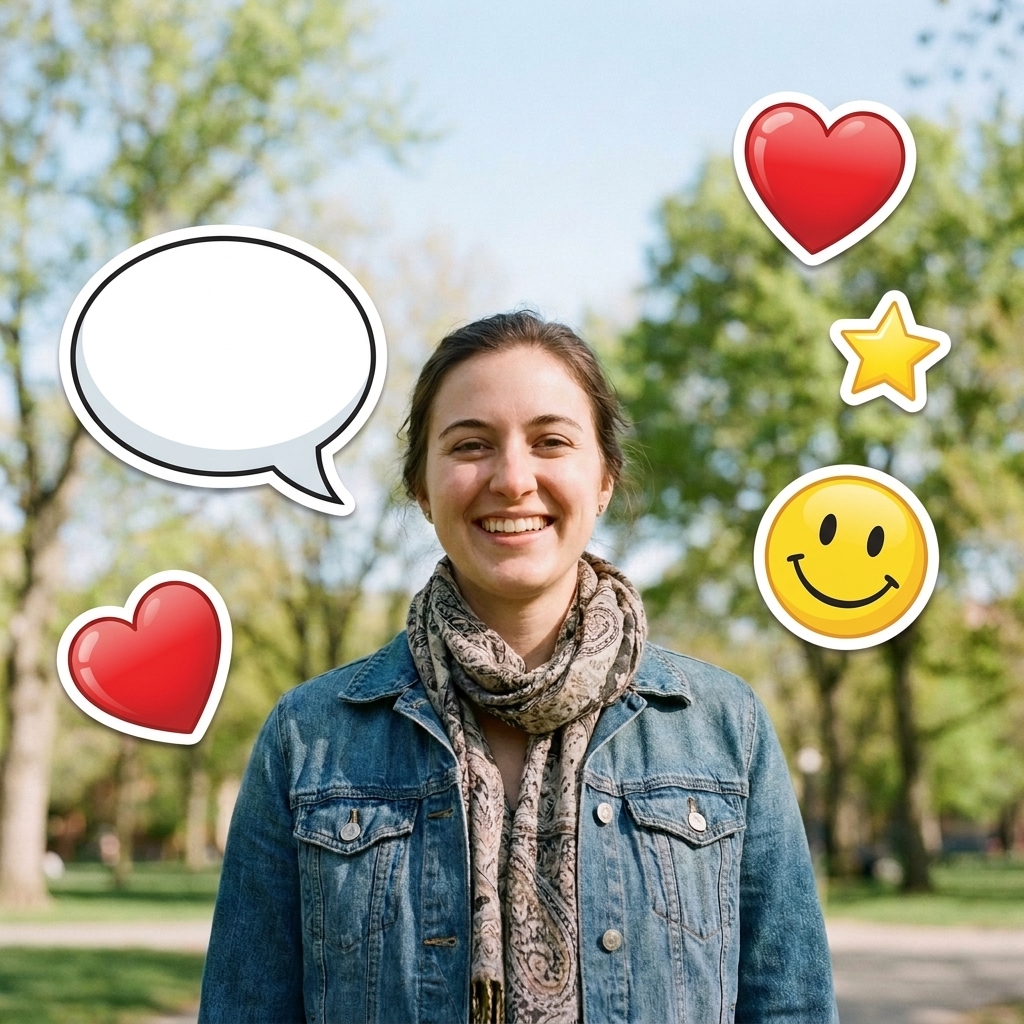
1. Emoji-style sticker: add a smiley, heart, or star face to a casual photo for a playful social post. 2. Flat die-cut badge: place a round star, sun, or flower with a clean white outline onto a journal, laptop, or packaging photo so it reads like a real pressed-on sticker.
3. Seasonal sticker: add a leaf, snowflake, or pumpkin to a greeting card or holiday photo. 4. Pet cartoon sticker: turn a pet photo into a cute sticker moment while keeping the animal's real pose and face. Use only designs you own or are allowed to use, and avoid protected characters, brand logos, and celebrity likenesses.
How to improve sticker placement and make it look natural
The most common problem is a sticker that looks pasted on. That usually comes from mismatched perspective, scale, or shadow. Match the sticker to the surface: a sticker on a wall should share the wall's angle, and a sticker on a table should sit on the table's plane with a subtle contact shadow that agrees with the light direction.
If the result looks wrong, change one thing at a time. First fix placement and size, then adjust the shadow, then match color and brightness. Keep the sticker away from faces and key details unless you intend to cover them, and regenerate with simpler wording instead of adding more instructions.
Start with a free add sticker to photo AI generator
Use the editable prompt above as your starting point. Upload your photo, replace the sticker description with the graphic you want, and keep the preservation line until the placement looks right. This free add sticker to photo workflow is quickest when your goal is specific: one photo, one sticker, and one believable position.
Only add stickers you own or have permission to use, and do not add copyrighted characters, brand logos, or celebrity likenesses. This tool is not affiliated with any brand. Review the result before you share it, and adjust the prompt if the sticker needs a better fit.