Step 101
Upload Your Photo
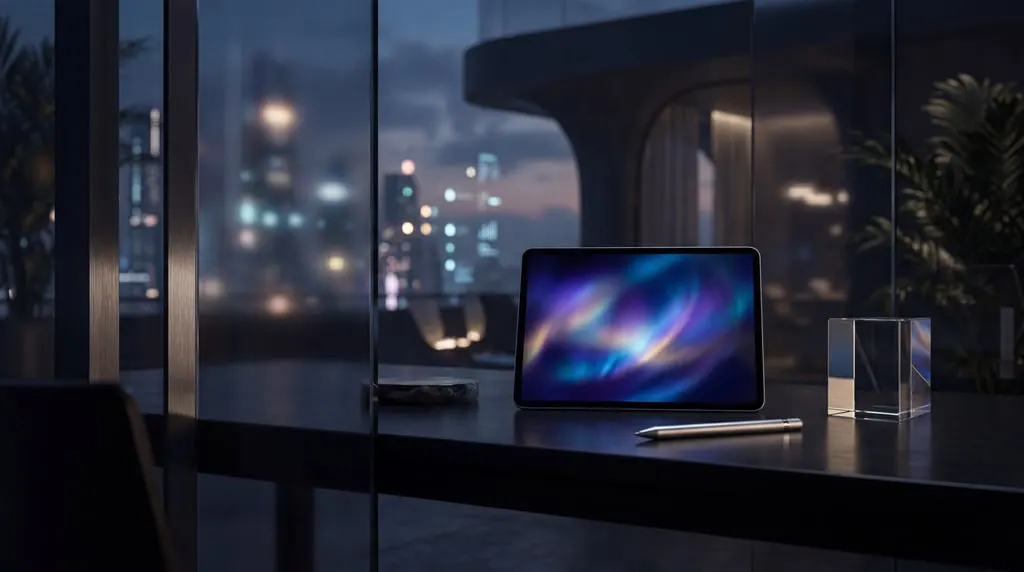
Open the editor and choose image-to-image to use the picture enhancer. Upload a reference photo, then describe what needs attention and what should stay the same.

Bring out the look you want with Pikvee’s picture enhancer. Open the editor, switch to image-to-image, and describe the lighting, color, or details you want to improve.
Start with a photo and a clear editing goal. Choose your model, review the credit cost, and compare the result with your original.
Open the editor and choose image-to-image to use the picture enhancer. Upload a reference photo, then describe what needs attention and what should stay the same.
Select a model and its supported aspect ratio, resolution, and image count. The picture enhancer shows the credit cost before submission, so you can choose settings that fit your budget.
Ask for softer lighting, a more balanced color palette, or a cleaner background. Give the picture enhancer a specific goal instead of asking it to change everything at once.
Compare the output with your source photo. Check faces, text, and product details, then download a version you like or refine your instructions and try again.
Explore a more balanced look for portraits, product shots, and social posts. Start with your existing picture and describe the result you have in mind.
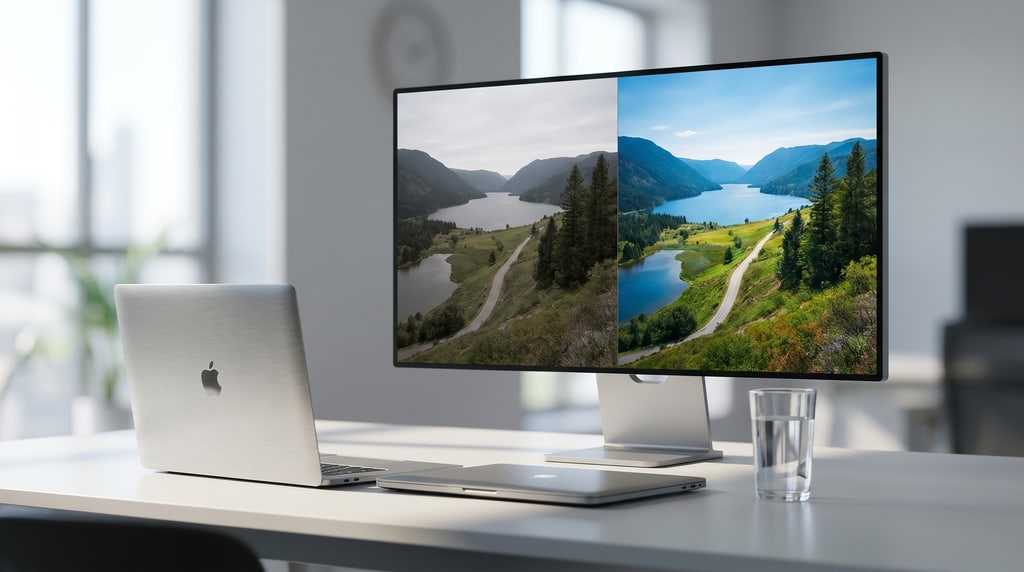
Image output
Use the picture enhancer to explore softer shadows, warmer tones, or a different visual mood. AI editing can reinterpret details, so compare each result with the original before publishing.
The picture enhancer shares a workspace with text-to-image creation. Use a reference photo for edits, or describe a new scene when you want to start from scratch.

Image generation
No source photo yet? Describe a subject, setting, and style to create a starting image. Text-to-image generates a new scene rather than enhancing an existing photograph.
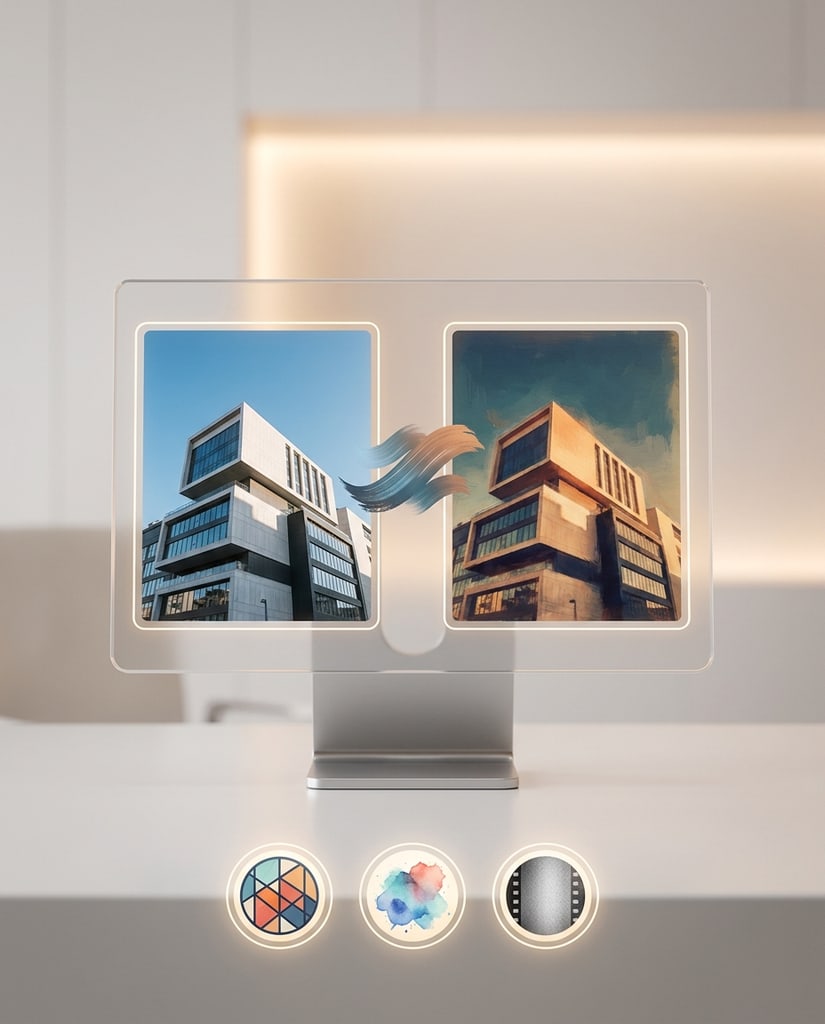
Upload your photo to the picture enhancer through image-to-image mode. Specify the changes you want and the features to preserve, such as the subject, framing, or original colors.
Choose how to approach each edit instead of relying on one fixed filter. Available settings depend on the selected model, and results depend on your source image and instructions.
01
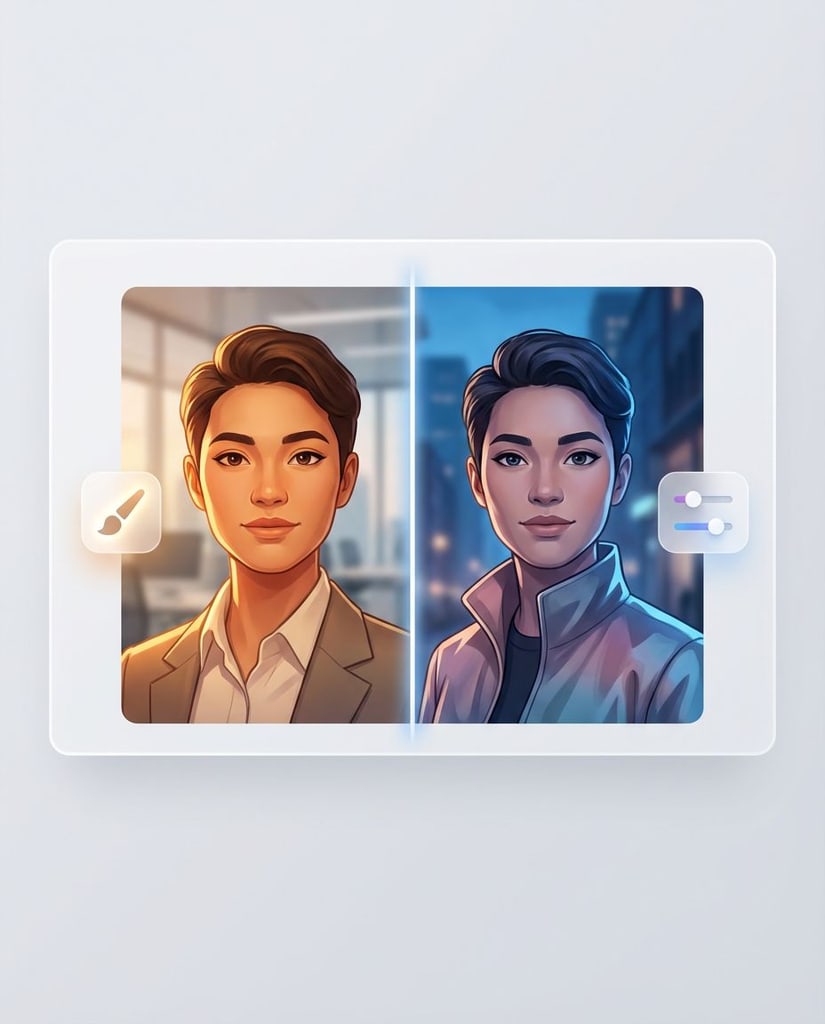
Try the picture enhancer with different supported image models. Compare how they handle portraits, product images, and creative edits, then use the result that best fits your purpose.
02
Select the output settings available for your model. A larger output does not guarantee recovered detail, so review the picture at its intended display size before using it.

03
Tell the picture enhancer which features matter most. Ask to retain a person’s appearance or a product’s shape while adjusting the background, lighting, or overall color treatment.
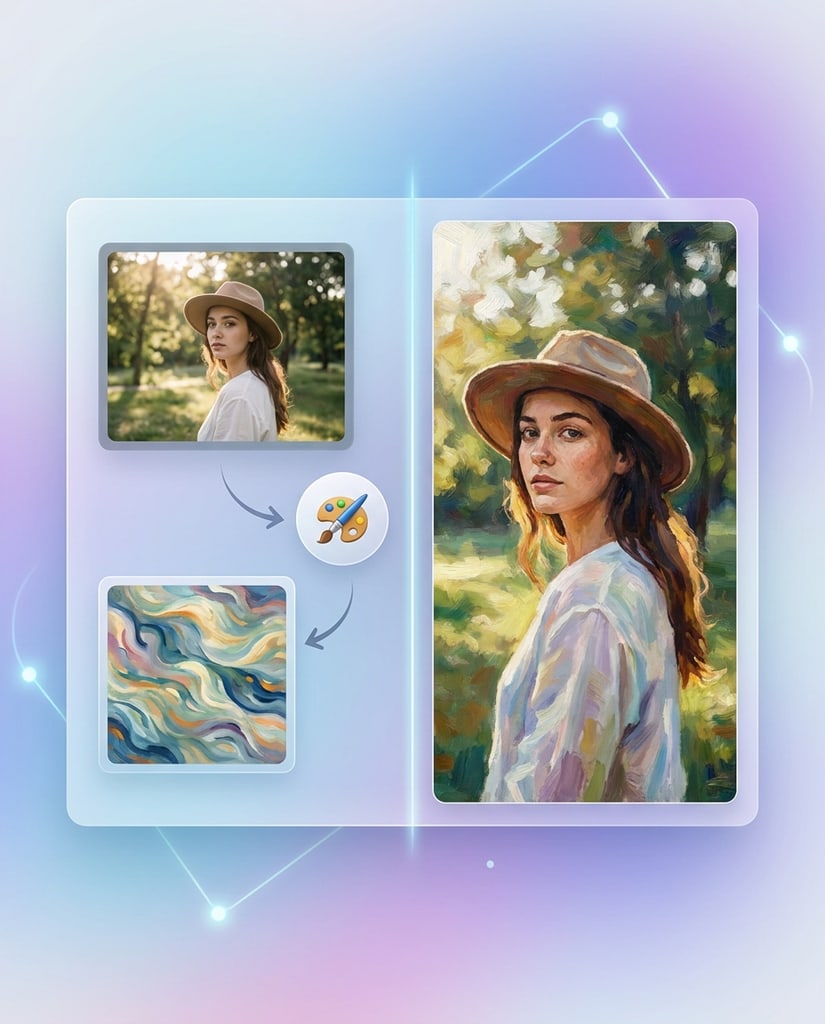
Start with a photo you own or have permission to edit. Choose a practical goal for your audience, from a warmer portrait to a more consistent product scene.
Explore more flattering light and a less distracting background. Compare facial features with the source; an AI edit may alter a person’s appearance rather than simply correcting exposure.
Use the picture enhancer to explore a consistent mood across your posts. Describe the color treatment and framing you want, and check the result in your chosen publishing format.
Refine the visual style of photos used in slides or teaching materials. Check any labels, diagrams, and factual details yourself; generated edits are not a reliable way to reconstruct information.
Try the picture enhancer for background and lighting ideas around a product. Before publishing, verify that labels, colors, proportions, and other important features still represent the item accurately.
Explore a warmer sunset, softer shadows, or a fresh color palette for a favorite photo. Keep your original file so you can compare changes and decide how far to take the edit.
Bring existing photos into the picture enhancer for website and promotional concepts. Describe your brand’s visual tone, then review each image for accuracy and consistency before sharing it.
A useful photo edit starts with a clear goal. Keep the source nearby, change one thing at a time, and make the final choice yourself.
Give the picture enhancer a well-framed original whenever possible. A very small or heavily blurred source leaves less information to guide the model, and newly generated detail may be inaccurate.
Begin with lighting or color before asking for broader changes. Specific instructions make it easier to understand which edit helped and which details need another attempt.
Inspect faces, lettering, edges, and product details. Save a version only after reviewing it; you can adjust the prompt and generate again if the first attempt misses your goal.
Learn how photo editing works, what to expect from AI-generated changes, and where to check settings and credit costs.
A picture enhancer helps you change how an existing image looks. Pikvee uses generative image models: upload a photo in image-to-image mode and describe your edits. It can reinterpret details, rather than making a lossless correction to the original pixels.
Open the editor, select image-to-image, and upload your reference photo. Describe the improvement and any features to preserve. Choose the model and available settings, check the credit cost, then generate and compare the result with your original.
No. Results depend on the original image, model, and instructions. Severe blur or missing information may lead to invented details. The picture enhancer does not guarantee accurate recovery of faces, text, or other content that cannot be seen in the source.
Credit costs depend on the selected model and output settings. Check the displayed amount before submitting a task, and visit the pricing page for current plans. Review the result before spending credits on another version.
Use these approaches to give the picture enhancer clearer instructions and judge whether the changes fit your photo.

Replace vague requests such as “make it better” with a concrete goal: soften harsh shadows, balance the colors, or simplify a distracting background. Keep the instructions short and focused.
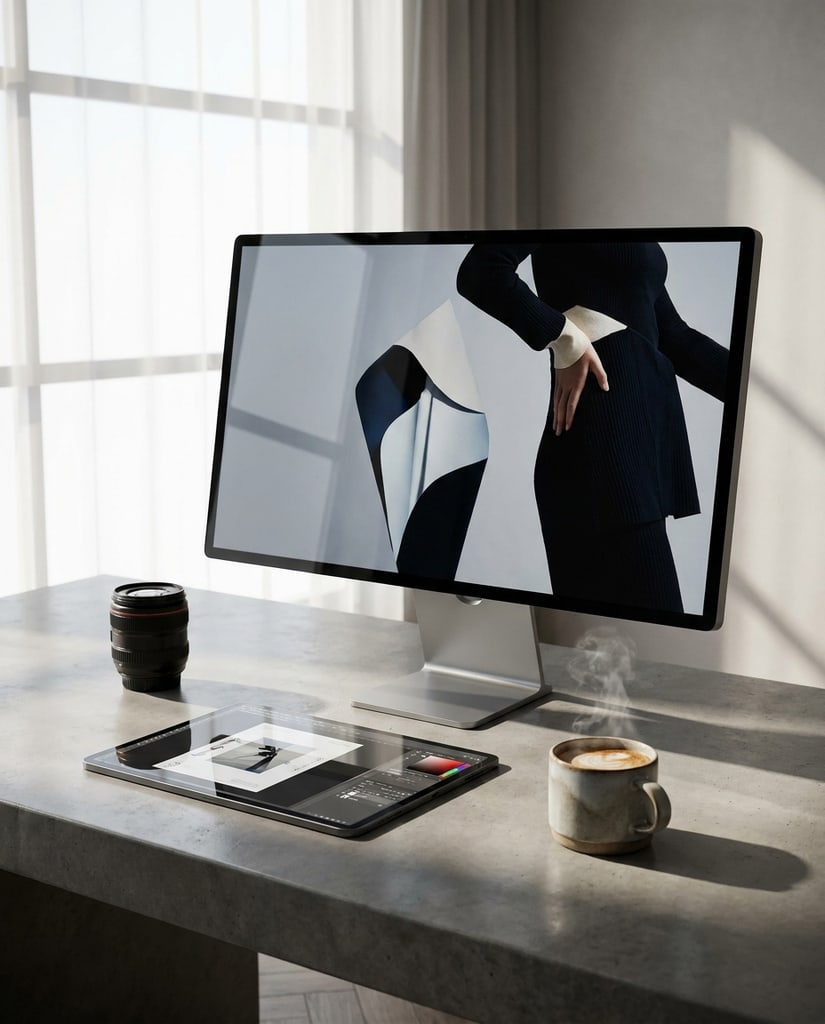
Guide the picture enhancer with a short preservation instruction. Mention the face, product shape, framing, or other features you need to retain, then check them carefully in the output.
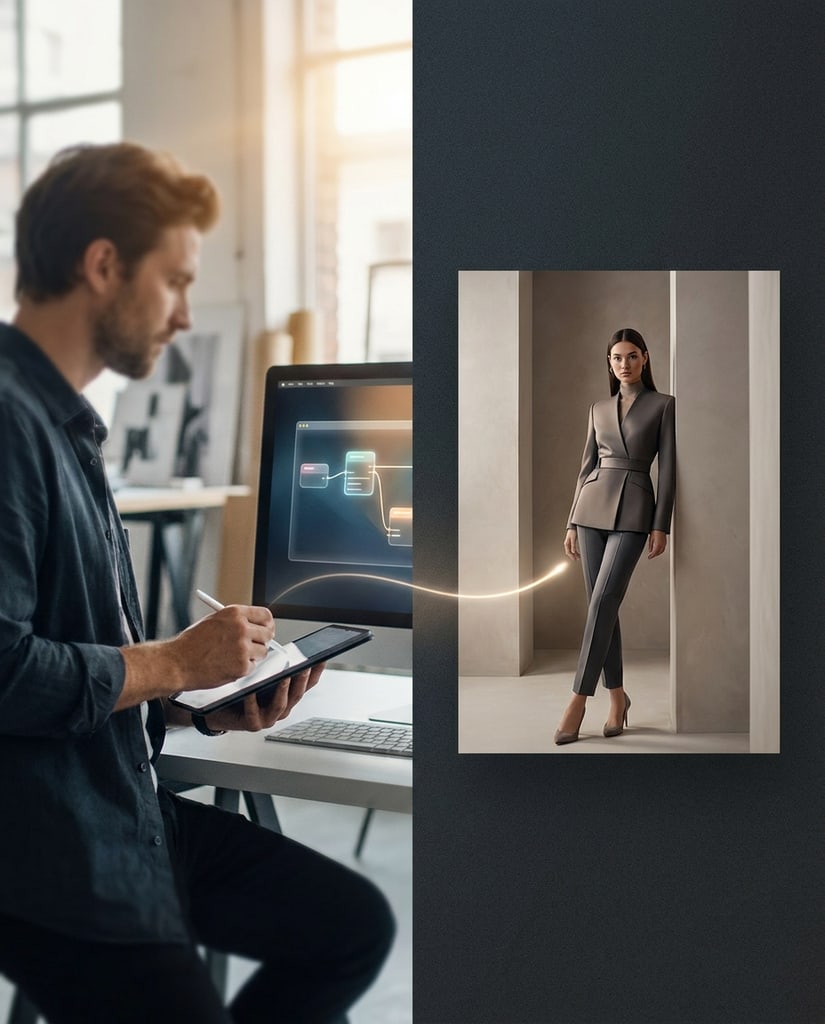
Look at both the full picture and a close crop of important details. A result that works as a small social post may show unwanted changes when displayed larger.

Start with a photo and a focused editing goal. Open the editor, switch to image-to-image, choose your settings, and explore a new look with Pikvee.
Privacy Choices
We use cookies and similar technologies to keep Pikvee working, measure product usage, and control advertising-related preferences. Necessary cookies stay on. You can reject non-essential use or review detailed settings.



